Ink & Key Initial Setup Guide
So you’ve just downloaded Ink & Key. Congratulations! Your digital life is about to become so much easier to manage. (And your AI use so much more private!)
But how do you set it up? I’m glad you asked, dear reader. In this article, I will walk you through the steps to set up your brand-new digital cabinet. Don’t worry, I’ll hold your hand the whole way through (also, it’s pretty easy).
First things first, click the download link in the email you received that contains your fancy new license key.
On the Downloader page, enter that same email address and the license key in order to start your download.
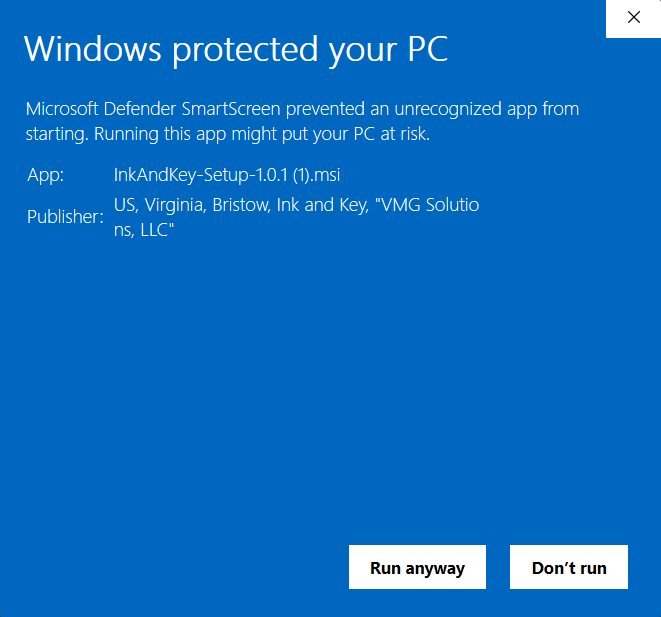
When you open the installer (once it downloads), there’s a chance that this warning will pop up:
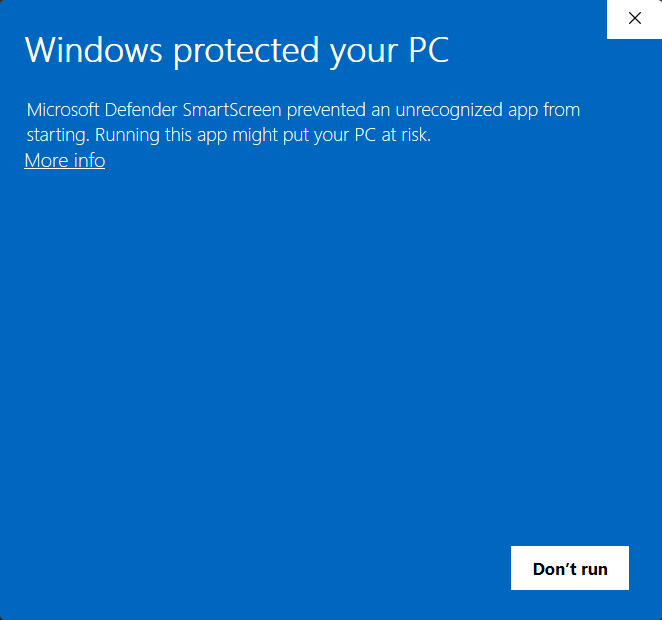
This is only because we are so new! By downloading Ink & Key, you are helping ensure that future customers do not need to deal with such botherances. You are basically a hero.
In order to move past this warning, click on “More info” and then click “Run Anyway”. Then continue to follow the Setup Wizard’s instructions.
When Ink & Key opens for the first time, you will be greeted by this card:
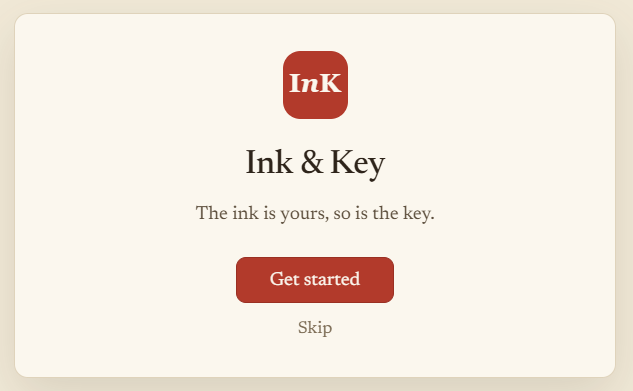
If you skip, you will be taken straight to the app, and you can start exploring! I recommend you start with the Setup Guide already saved in your Notes, or the setup tasks already created in Tasks. Both of these are excellent resources and will help you get the most from Ink & Key.
The first thing to do after clicking “Get Started” is to choose a folder on your computer for your library to live. You can stick with the default folder, or move it anywhere you like. You can always move it again later, so no pressure!
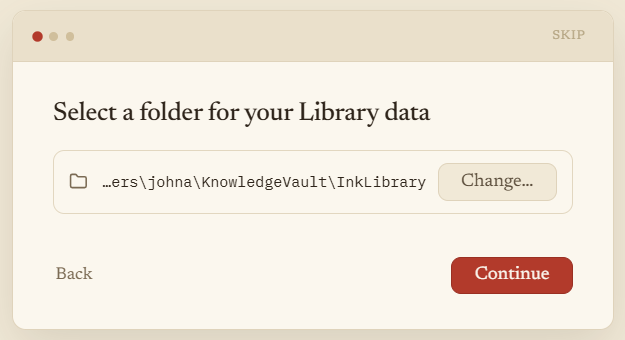
When you have set your library’s location, you can start adding files. Anything you already have that you want to be better organized can be added in this step: tax returns, book reports, receipts, vacation photos, book ideas, meeting notes, the list goes on and on. You can move any of these files in individually or by folder, and you can choose whether you want to make new copies or move the originals.
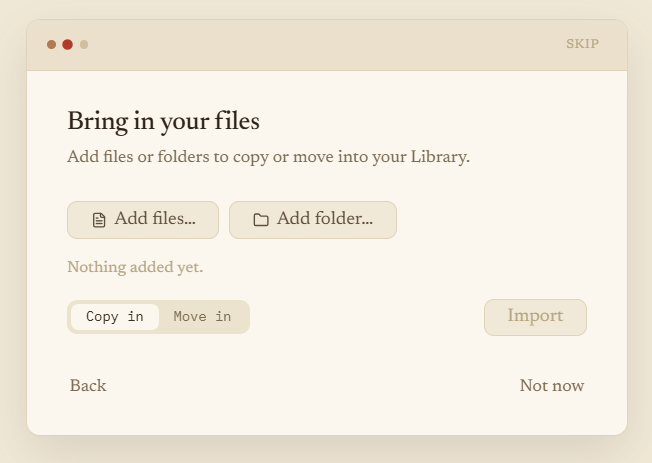
Alternatively, you can skip this step and add files later. Maybe you don’t have any files at all. It could happen. We don’t judge.
Once you have added your files (or not, as the case may be), the app will ask you if you want to switch to Online Mode in order to download the local AI that will power your new app.
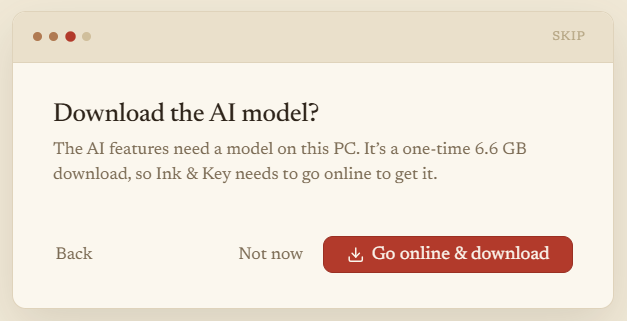
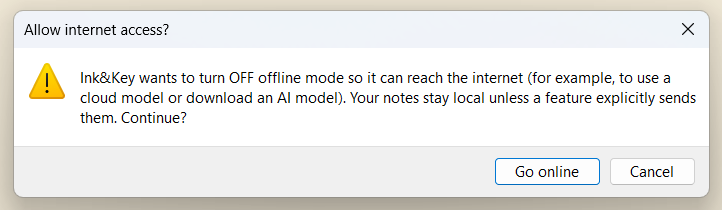
This is the one and ONLY time that you need to connect your app to the internet. Once the local AI is downloaded, you can switch right back to offline mode and leave it there forever, if you so desire (see later in this article why you might want to go online every once in a while).
If you want to skip this step for now, you can click “Not now.” Of course, none of Ink & Key’s AI features will work, but you can still store files and such. You just won’t have a totally private, personal AI that knows all your stuff and can find any of your files for you whenever you want. Alright, who are you kidding, you want that AI and you immediately regret your decision (we’ve all been there). Not to worry! Just head over to Settings -> AI and download the AI of your choice.
Once you have you switched the app over to Online Mode and begin the download (or if you skip that part), you can continue on to the app! Welcome in! Please, make yourself comfortable. We have a Setup Guide waiting for you in Notes with additional information, as well as a Setup checklist in Tasks to help you get started. Feel free to delete these at any time, or save them to reference later.
Don’t worry about the AI download! You can check its progress in Settings -> AI. Here you can choose the AI you want to use and delete the ones you don’t want. You can also read descriptions of the different models so you can figure out which one is right for you.
Wait! There is one more thing to do before you gleefully begin organizing your digital life with your own private AI! Before you switch your app back to Offline Mode, go to Settings -> General and paste your license key into the proper field. This lets you receive all the fancy new features and updates, as well as the not-so-fancy-but-still-good bug fixes that our team tirelessly pushes out. Okay, now you can switch to Offline Mode (it’s on the same settings page).
If you want to keep Ink & Key entirely offline, that is absolutely no problem! Ink & Key will never connect to the internet without your express permission, and will continue to run with no new updates. Think of it like taking your car to the mechanic. Will it run if you never take it in? Of course! For a long while, anyway. Eventually, however, things will start to break down (think: the Windows operating system). Therefore, I do recommend that you connect briefly every once in a while in order to check for new updates. Alternatively, you can check right here on the blog for any big updates or feature releases.
Phew, that was intense, but we made it through! Thank you so much for downloading Ink & Key; I know that you will love the app as much as I do.
Happy organizing!